Before you begin, have the customer's BVN or NIN ready. Caltos uses one of these verification numbers to retrieve and pre-fill the customer's biodata. You should also have their current contact, residential, employment, identification-document, and bank-account details available for review or completion.
Step 1: In the left navigation, open Customers.
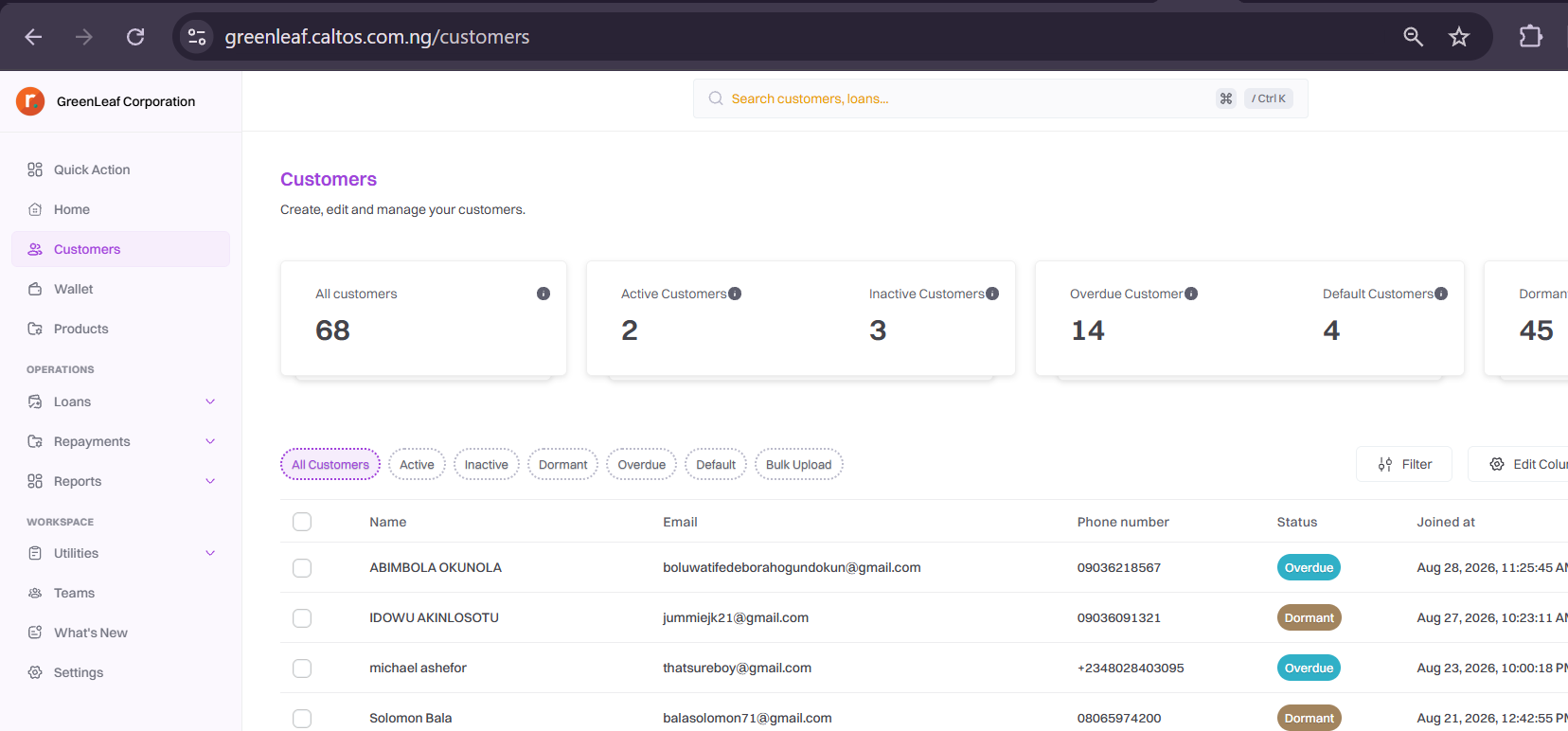
Step 2: Select "Add new customer".

Step 3: Choose "Add single customer".

Step 4: Greenleaf opens the Add customer workflow. The progress bar shows the three stages: Biodata, Documents, and Bank.
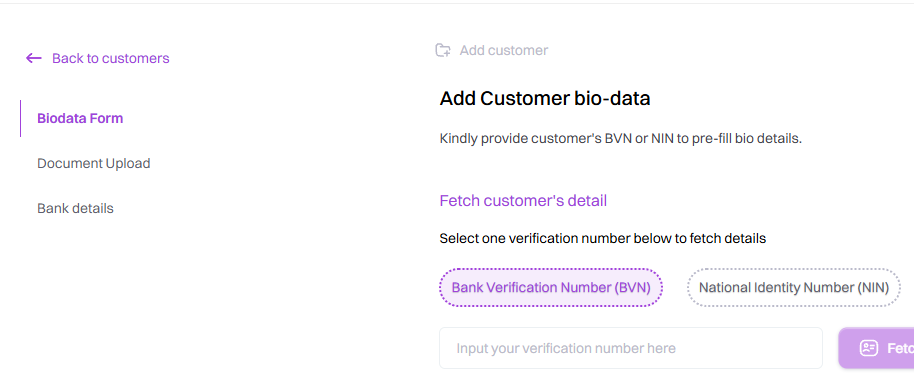
Ste 5: On the Biodata step, choose either Bank Verification Number (BVN) or National Identity Number (NIN).
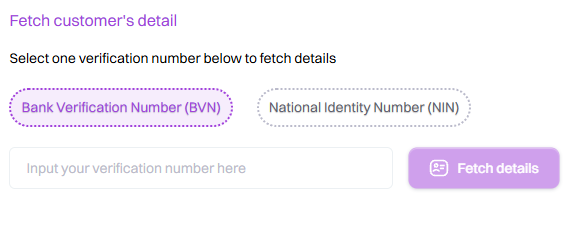
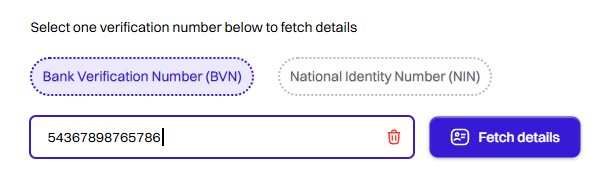
Step 6: Enter the selected verification number in Input your verification number here.
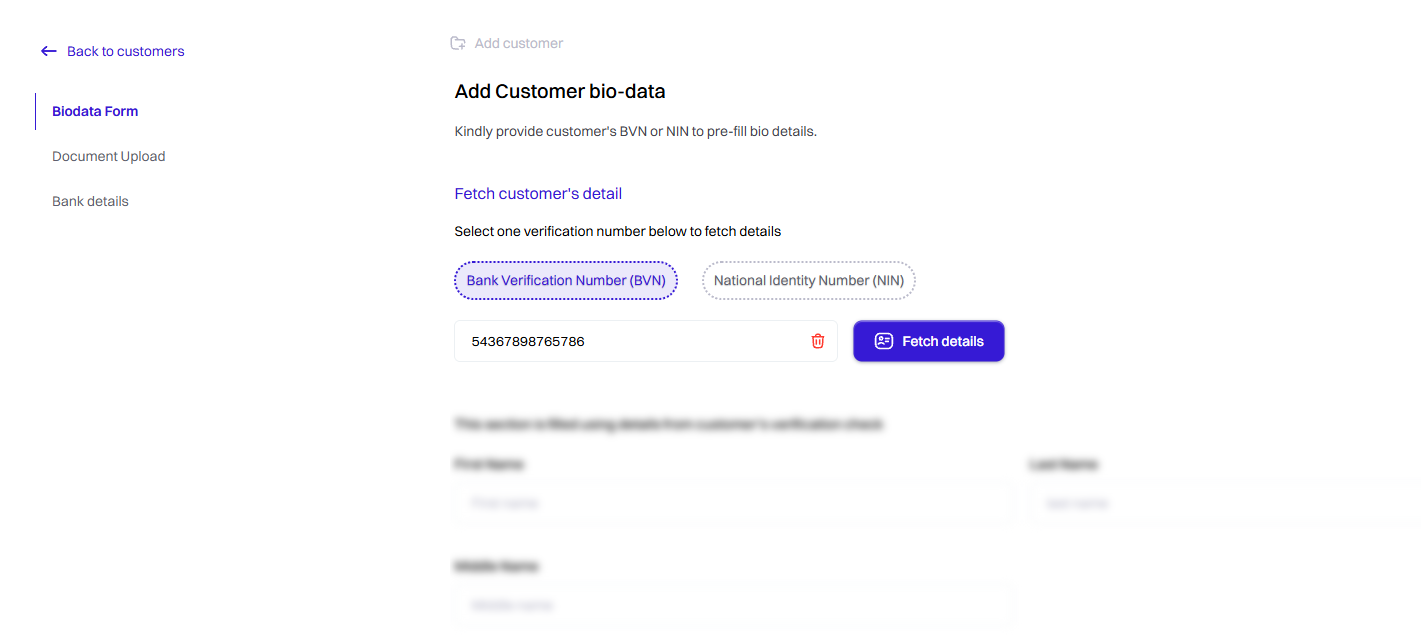
Step 7: Select "Fetch details".
Step 8: Review and complete the form; check or complete the following fields as applicable:
-First Name
-
Last Name
-
Middle Name
-
Date of Birth
-
Phone Number
-
Email
-
Bank Verification Number (BVN)
-
National Identification Number
-
Workplace Name & Location
-
Alternative Phone Number
-
Country
-
State
-
Residential address
-
IPPIS Number
Step 9: When the information is correct, select "Upload customer's document" to continue.

Step 10: Select a document type.
-
National ID card.
-
Voters card.
-
Driver's licencse.
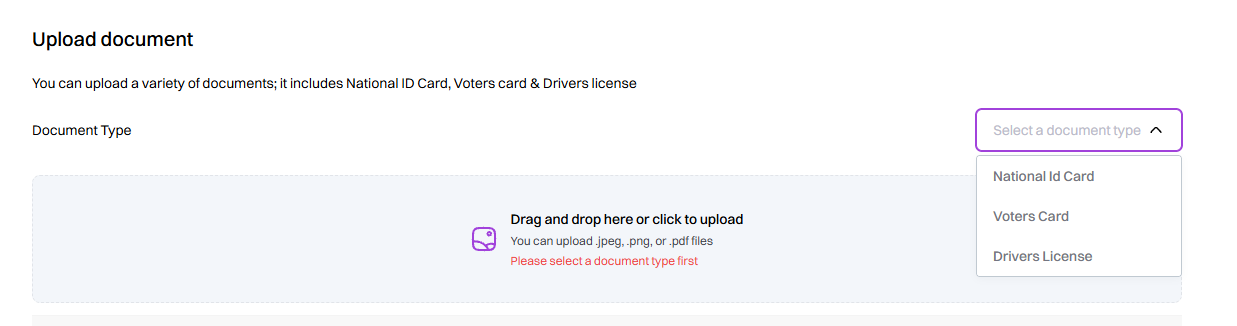
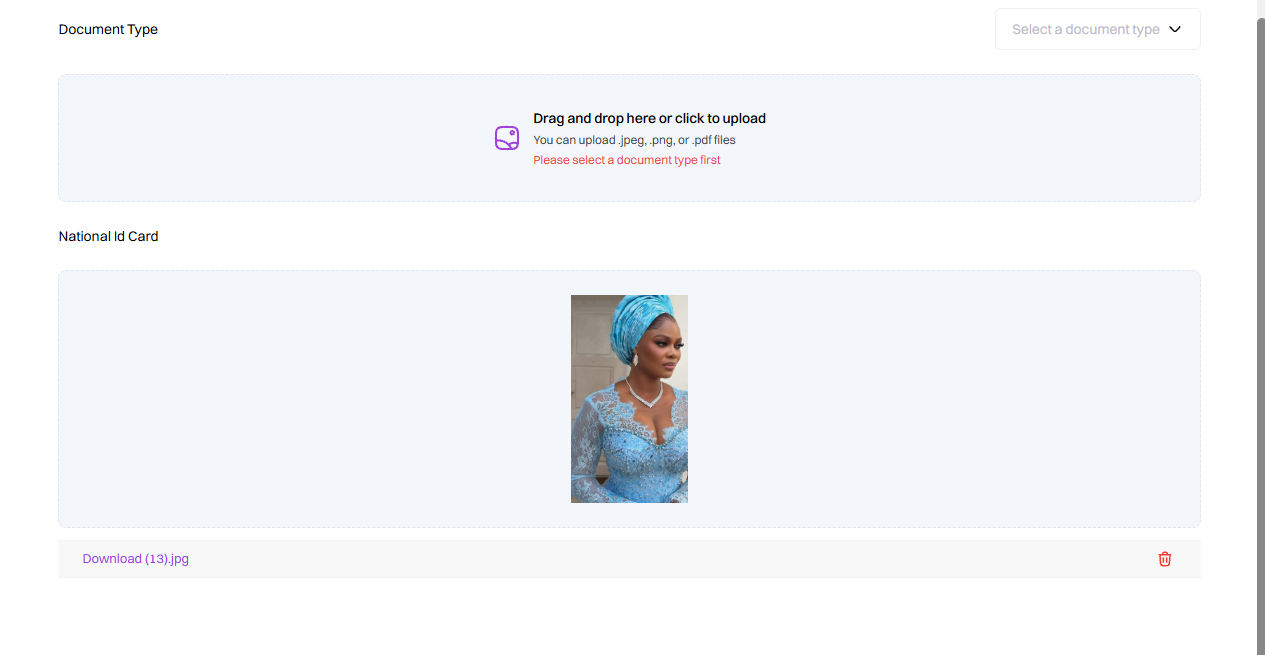
Step 11: select the upload area to browse for it to upload a; .jpeg, .png, .pdf file.
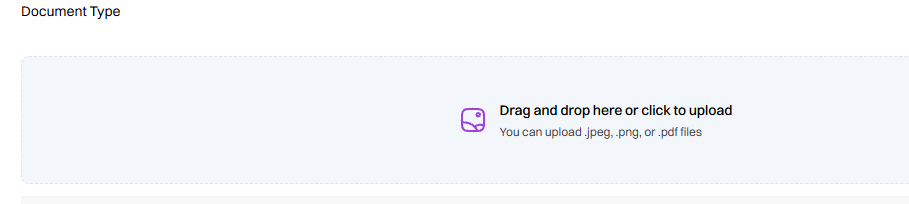
Step 12: Confirm that the uploaded document appears in the list, then select "Proceed to bank details form".
Step 14: Select the customer's bank name.
Step 15: Enter the account number.
Step 16: Select Verify Account once the button becomes available.
Step 17: Confirm that the returned account information belongs to the customer.
Step 18: After the customer's bank account has been verified and all details have been reviewed, select "Add Customer".