This guide gives you a step by step guide on how to create and set up a Remita DD Mandate
Note: To use this Direct debit option, the organisation administrator must have configured Remita DD as part of the integrations to be used for the product during product setup.
Step 1: Click on the loan you want to set up on
Step 2: Click on the integration tab (Fourth tab)
Step 3: Click on "Direct Debit" under the integrations on this loan section
Step 4: Ensure Remita is selected from the available direct debit options
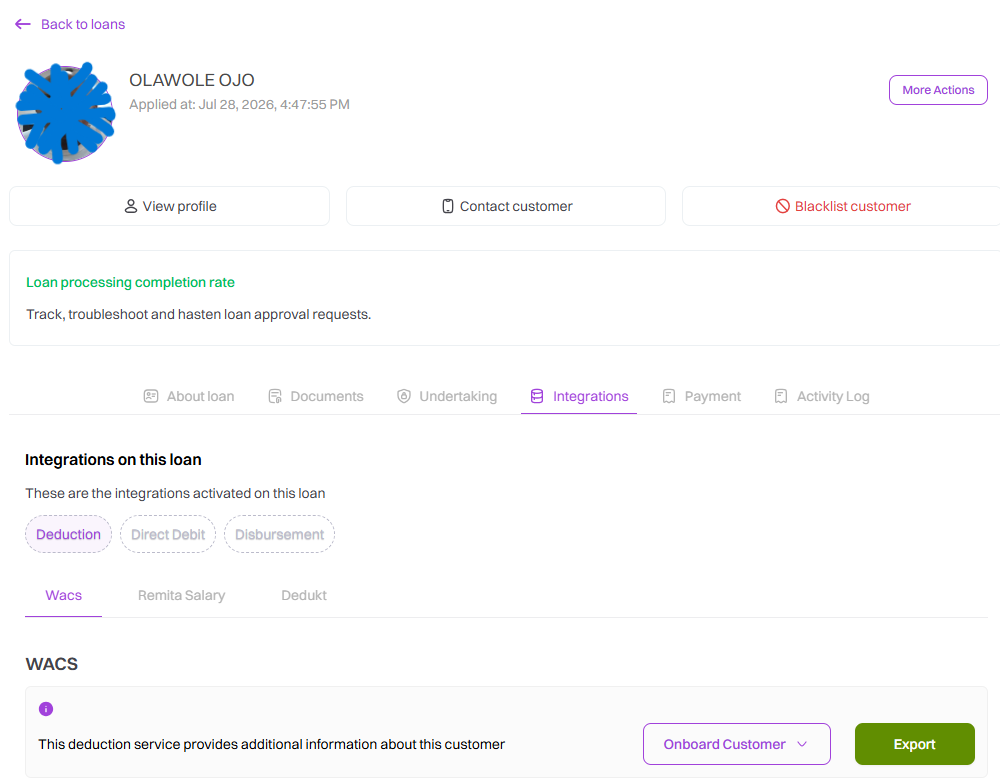
Step 5: Create Mandate
Click on the "Create Mandate" dropdown arrow. The arrow gives you 4 options in the dropdown:
-
Sync Customer Profile:
-
Onboard External Customer:
-
Fetch Customer Profile:
-
Migrate Active Loan:
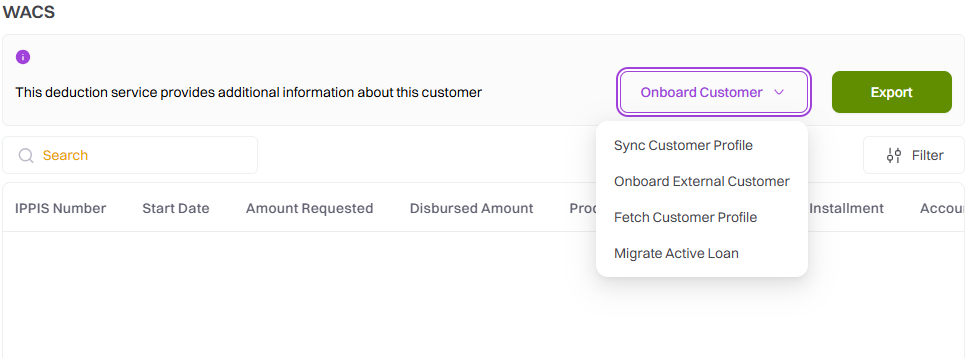
Step 6: When a setup is done, it is displayed this way with a "Pending/Awaiting Bank Approval" status.

Step 7: To get the current status of the set up, click on "Sync Loan". When the status changes to Approved. Click on "Approve loan" to send for disbursement
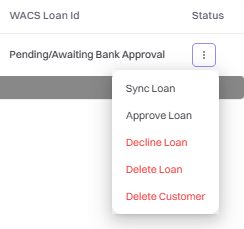
Step 8: If a setup is not successful, the status returns as failed.

Step 9: When disbursement is successfully done, the status changes to "Disbursed to Wacs".